 TankTalk
How to use TankTalk
From fill-up to fuel insights in minutes.
Set up your vehicle once, then log every stop with Siri or a quick tap. TankTalk handles the math and keeps your fuel economy history close at hand.
A one-time setup
Add your vehicle
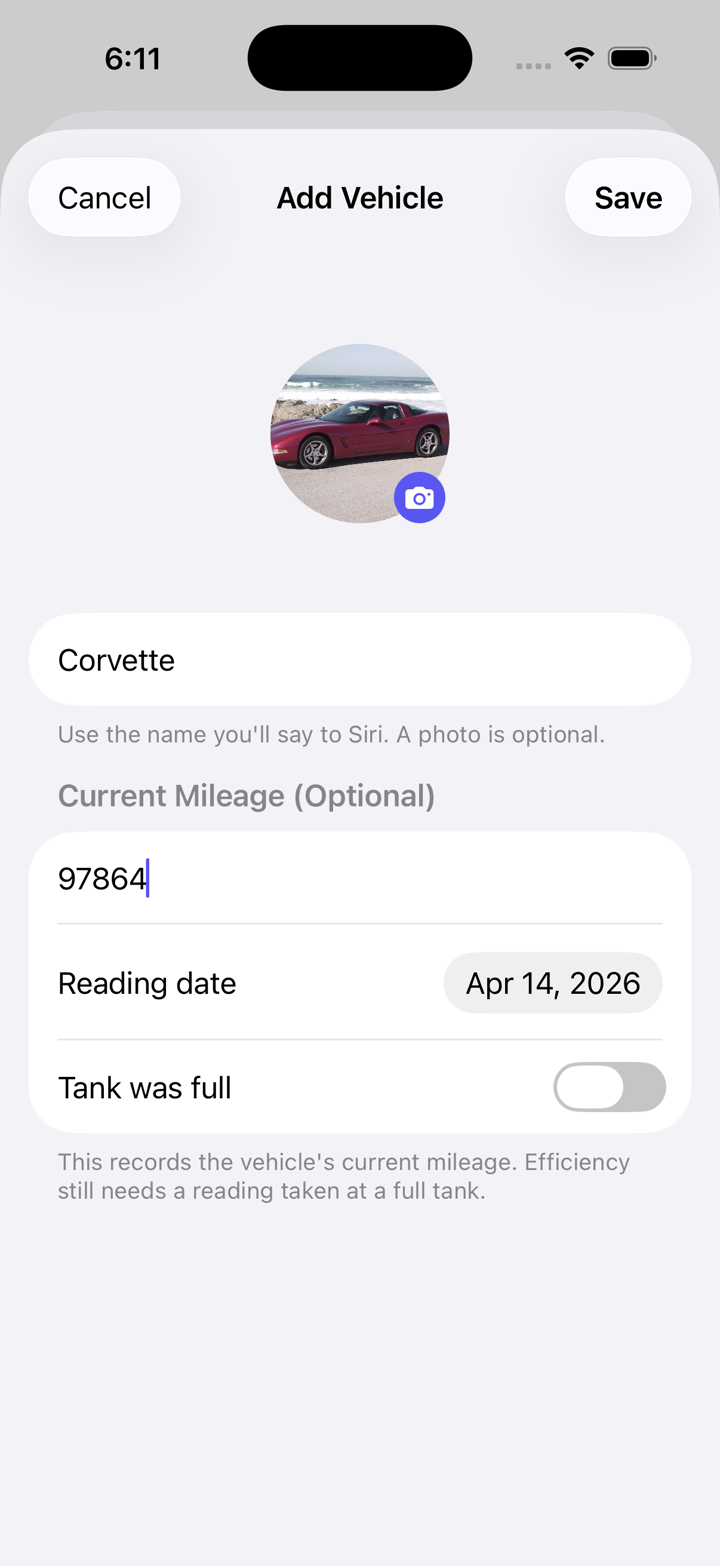
Open TankTalk and tap the Add Vehicle button to add a vehicle. Give it a nickname you’ll recognize, add a photo if you like, and enter its current mileage if you know it.
Open Settings to choose the fuel-economy units that match your vehicle and region: mpg, L/100km, or km/L.
The fastest way to log
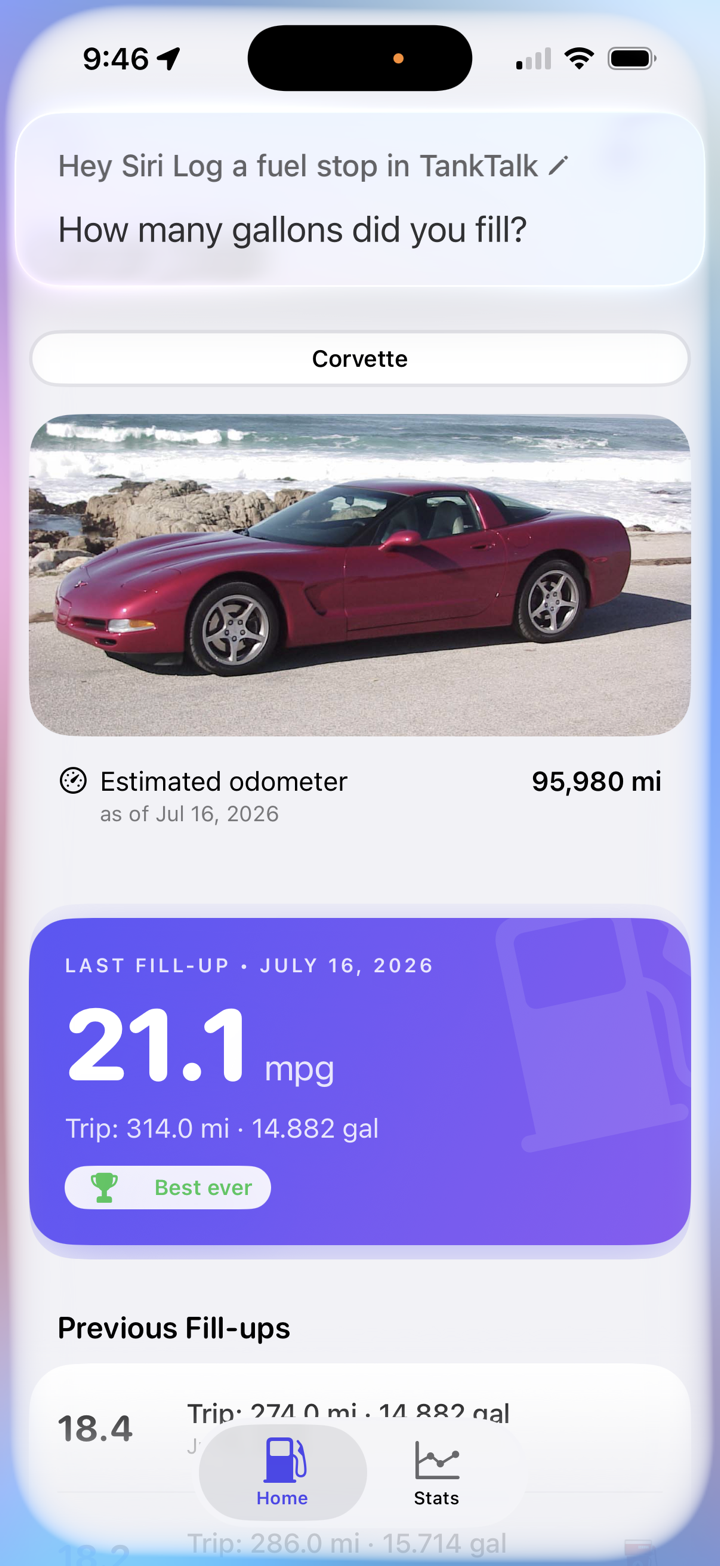
Tell Siri you filled up
Once you finish fueling, say:
“Hey Siri, log a fuel stop in TankTalk.”
Siri will guide you through the details TankTalk needs. After you answer each prompt, your new fill-up is saved without even having to open the app.
You can also use natural variations:
- Use TankTalk to log a fuel stop
- Add a fuel stop in TankTalk
- Log fuel in TankTalk
- Add fuel in TankTalk
Prefer to tap?
Log a fill-up in the app
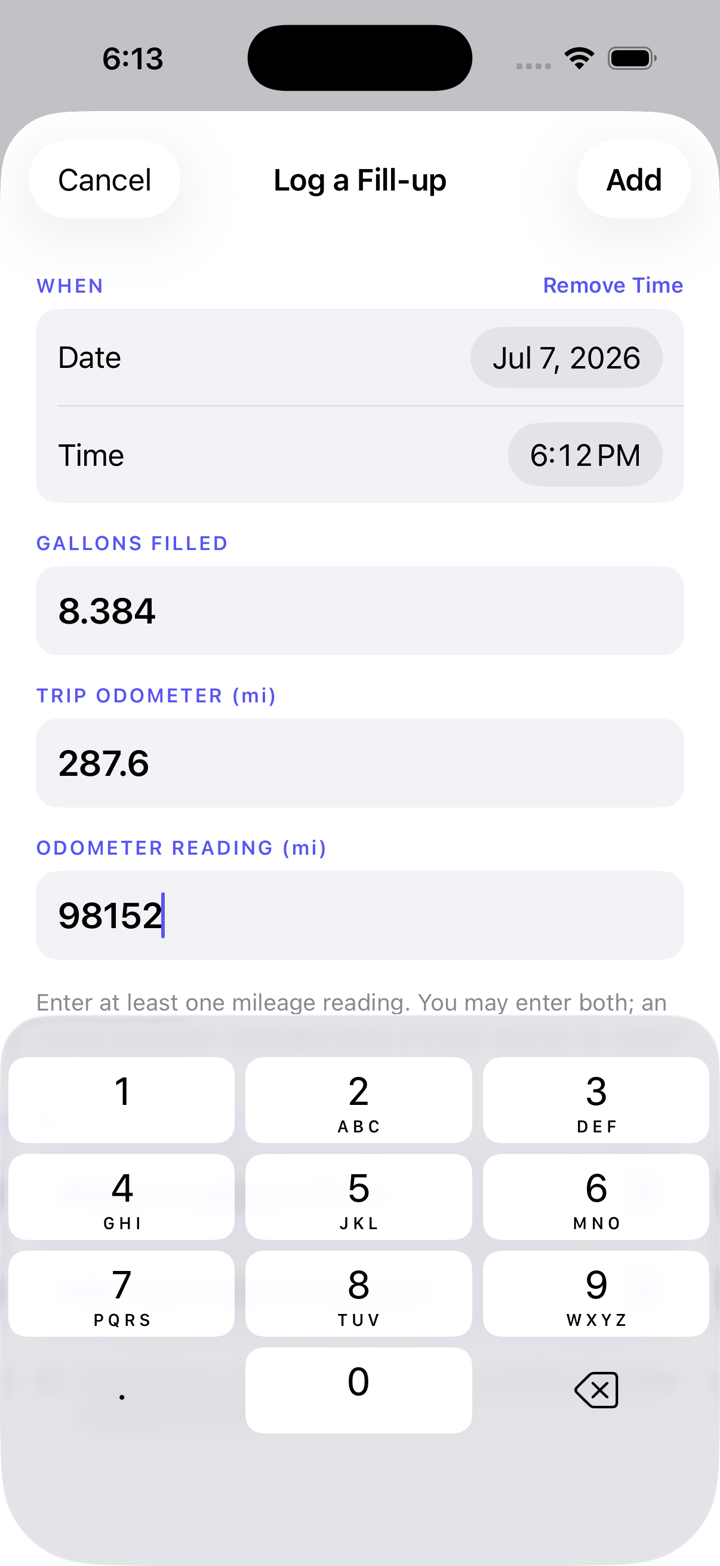
From the Home screen, tap the plus button at the top right. Enter the amount of fuel you added and at least one mileage reading, then review the date and save.
- 1
Review when. Confirm the fill-up’s date before you begin. It defaults to today's date.
- 2
Enter your fill-up. Use the values from your trip display and the fuel pump or your receipt.
- 3
Save and review. TankTalk calculates your fuel economy and adds it to your history. It will also update your odometer reading, if it was previously recorded.
See the bigger picture
Follow your fuel economy
Your Home screen shows the latest result and your previous fill-ups. TankTalk also lets you know how a fill-up compares with your usual fuel economy.
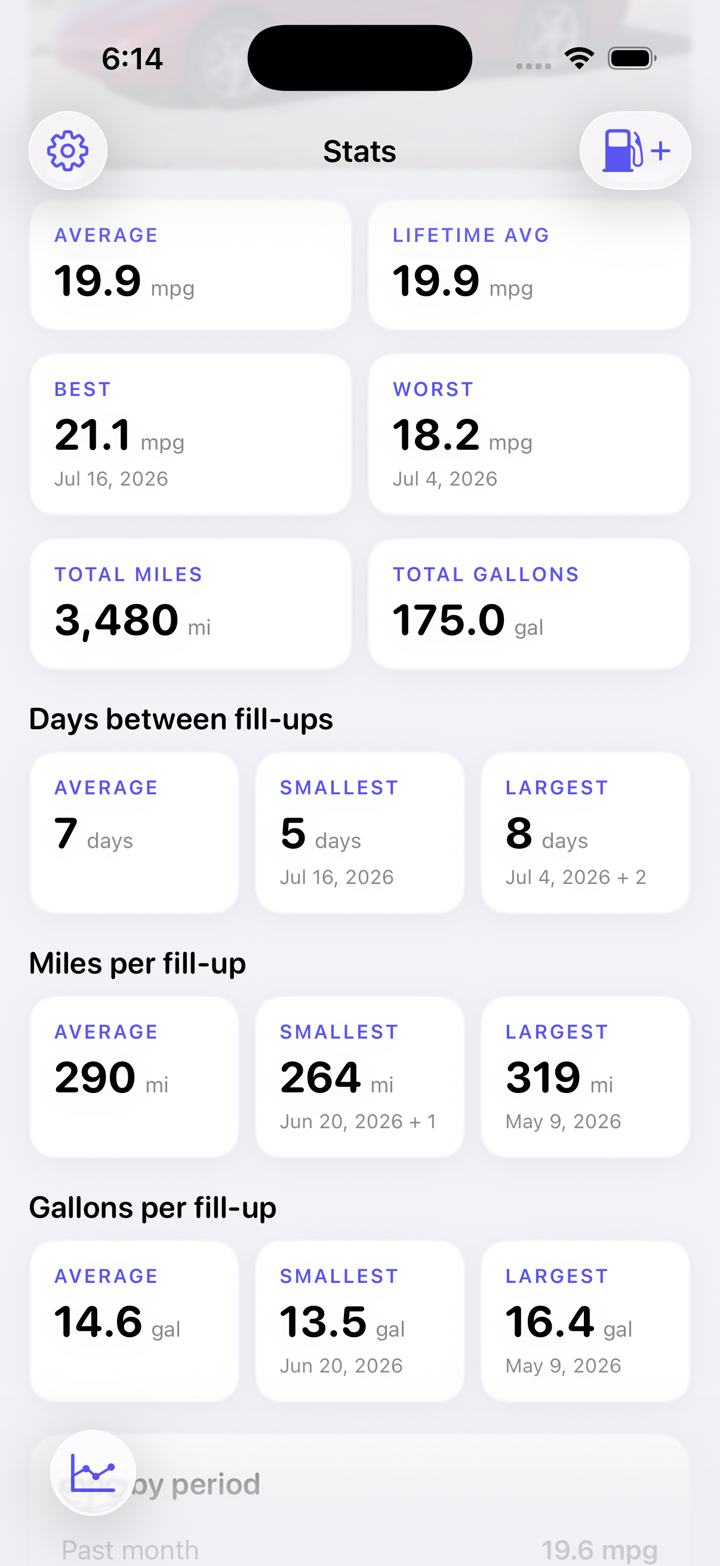
Open Stats to see your average, best and worst results, lifetime distance and fuel totals, and patterns between fill-ups.
That’s all there is to it
Ready for your next fill-up?
Log it while the numbers are fresh, then let TankTalk keep the history for you.